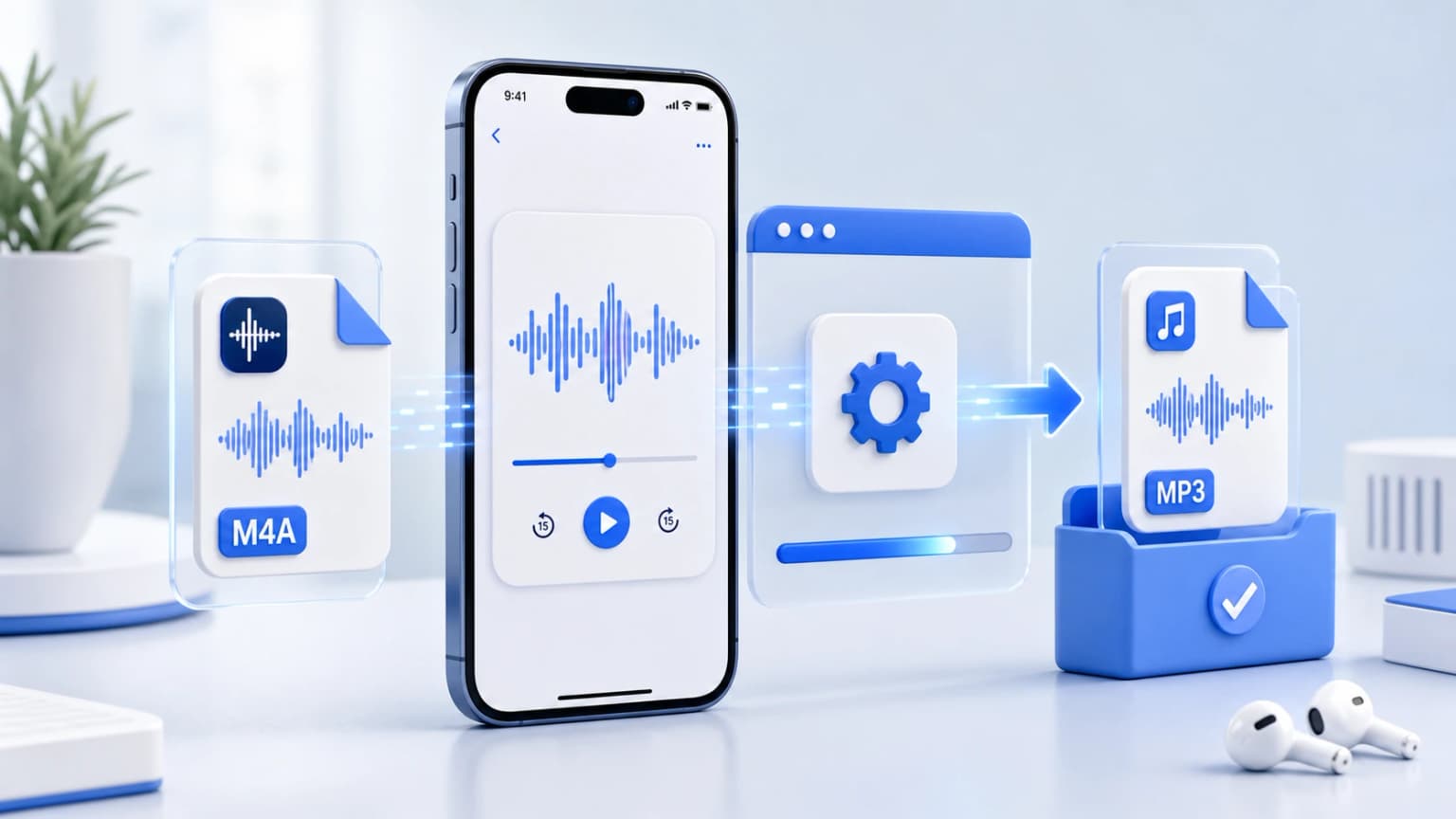
Apple's Voice Memos app is a popular choice among journalists, students, and musicians in India for recording interviews, lectures, and musical ideas. However, the app exports recordings in Apple's proprietary .m4a format, which is not universally supported.
Converting these files to MP3 directly on your iPhone is easy, secure, and doesn't require installing sketchy custom apps. Here is the best method:
Step-by-Step iPhone Voice Memo Conversion
- Export from Voice Memos: Open the Voice Memos app on your iPhone. Locate your recording, tap the three dots (...) on the left side, and select Save to Files. Choose a target iCloud or local directory.
- Load our Sandbox Tools: Open Safari and navigate to m4atomp3.net.
- Select Files securely: Tap the file upload area, select File, and choose your exported recording.
- Convert Offline: Choose your target bitrate (such as 256kbps) and press Convert Now. Our WebAssembly compiler will process the file on your device in seconds.
- Download: Tap the download icon to save your new MP3 file directly to your iPhone's standard downloads folder.
Perfect Security & Data Containment
Because our converter operates entirely locally using WebAssembly inside iOS Safari, your files never leave your device. This ensures absolute privacy for sensitive business meetings, interviews, or personal audio projects.