How to Convert M4A to MP3 on Windows
Convert M4A recordings into widely compatible MP3 files on Windows with local browser conversion, practical bitrate advice, and offline desktop alternatives.
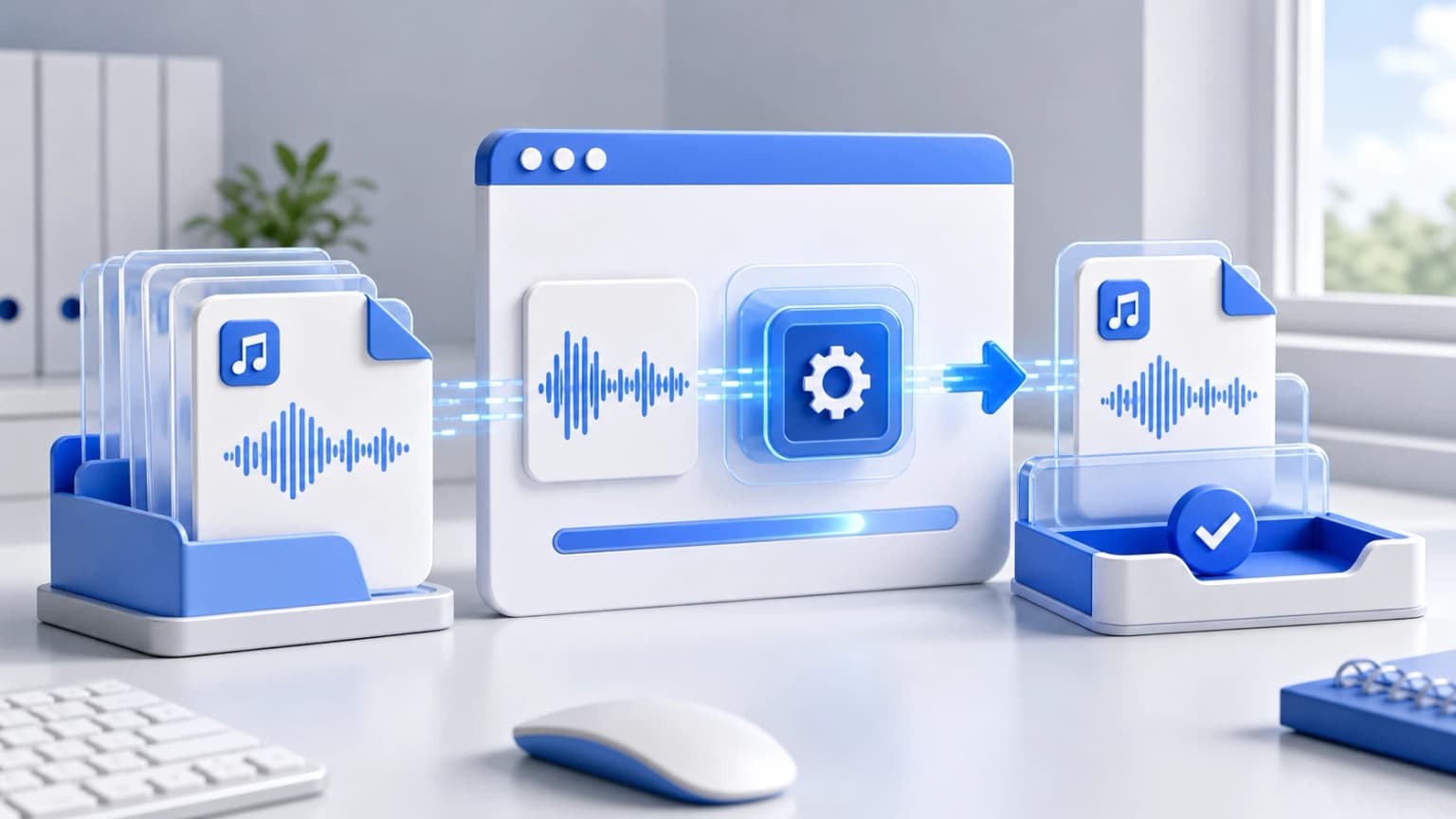
Drag & drop your M4A files here
or click to browse from desktop or phone storage
100% Secure & Private
Your files are decoded and converted locally in your browser. Nothing is ever sent to our servers.
Fast Local Processing
Uses high-performance WebAssembly (FFmpeg.wasm) to process audio at native device speed.
Windows Conversion Walkthrough
Import your sound files
Select local audio clips using standard Explorer drag controls, or drop files directly onto our dashboard web UI above.
Configure Bitrate targets
Change the output target to MP3 and adjust to 256kbps or 320kbps for maximum quality.
Wait for Local Decoding
The FFmpeg wasm core compiles and finishes encoding right inside your Chrome, Edge, or Firefox browser session.
Windows Native Desktop Offline Options
Under Windows 10/11, standard voice notes and memos are frequently saved in .m4a format. You can easily turn them into MP3s using third-party freeware utilities:
Power Method: Using audacity (Free)
Audacity is a free open-source audio editor for Windows. Simply import your .m4a audio clip, click File > Export Audio, choose MP3 Files from the format options, check your constant or variable bitrate targets, and export instantly offline!
Windows FAQ and Troubleshooting
Other Free Audio Converters: