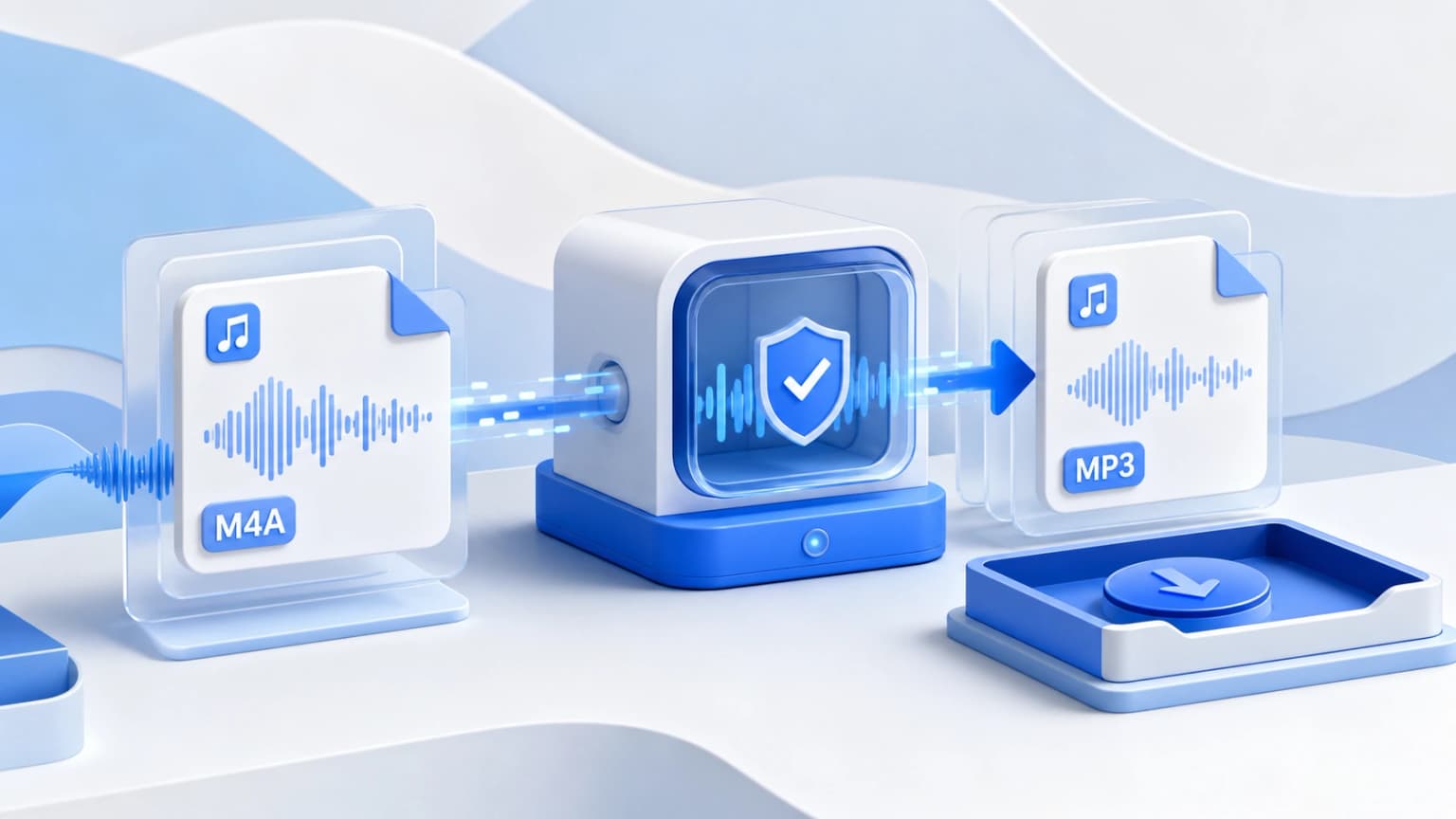
Whether you are managing a library of high-resolution Apple audio tracks, converting proprietary dictaphone recordings, or prepping batch voice memos for critical government portals in India (such as NEET, JEE, or state civil service forms), you will likely run into compatibility blocks. The .m4a format, while technically superior, simply fails to play on older car speaker arrays, legacy media dashboards, and professional editing software.
Converting these files to modern, standardized MP3 ensures universal device compatibility. Below, the engineering team at m4atomp3.net presents five completely free, secure, and production-tested methods to transcode your M4A assets offline and online.
Convert Instantly and Privately Right Now
Don't want to install heavy packages or upload sensitive data to unsafe cloud servers? Use our secure WebAssembly tool below to batch-convert your audio directly on your physical hardware.
Drag & drop your M4A files here
or click to browse from desktop or phone storage
Method 1: Local browser-side Transcoding (m4atomp3.net)
Most online services operate on a "cloud upload" architecture, transmitting your files to unknown server arrays where they are processed, indexed, and stored. For private audios, financial consultations, or academic lectures, this poses significant security vulnerabilities.
By compiling the powerful, standard FFmpeg conversion engine into lightweight WebAssembly (WASM), our system operates completely locally inside your browser sandbox. When you drag and drop local M4A audio files:
- The files are loaded into your device's isolated RAM.
- Our WebAssembly code processes the bitstream.
- Your computer's processor handles the mathematical transcoding.
- The final MP3 is generated as a local Blob file, bypassing internet uploads.
This approach is not only completely secure, but it also completely bypasses mobile cellular data caps. You can convert gigabytes of audio files without consuming any upload or download bandwidth!
Method 2: Multi-Platform Desktop Transcoding via VLC Media Player
VLC is a versatile open-source multimedia workstation that contains extremely robust transcoding micro-features. To batch-transcode files on VLC, follow these precise step-by-step instructions:
- Launch the VLC workstation on your desktop. Click on the Media option in the primary navigation rail (labeled File on macOS devices) and select Convert / Save... (or press
Ctrl + R/Cmd + Shift + S). - In the file entry dialog, click the Add... button and locate your local M4A audio tracks. Select all of them and click Open.
- At the bottom of the dialog, click the Convert / Save selection to advance to the next parameter stage.
- In the Profile dropdown panel, locate and select the option labeled Audio - MP3.
- (Optional) Click the wrench icon next to the profile to open the settings panel. Here, navigate to the Audio Codec tab to choose variable bitrates (such as 256kbps or 320kbps) and adjust the samplerate. Click Save.
- Define your output destination path. If you are batch-converting, VLC will automatically create duplicate files with standard MP3 names inside the source directory. Click Start to begin transcoding.
Method 3: Professional Offline Editing via Audacity
For musicians, audio engineers, and content creators who need to edit audio tracks before exporting them, Audacity is the industry-standard choice. To convert M4A files to MP3 using Audacity, follow these steps:
- Launch Audacity. Ensure you have installed the optional FFmpeg Library extension in Audacity's preference panel (required on older Windows environments to read M4A files).
- Under the File menu, click on Import > Audio... or drag your raw .m4a tracks onto the empty waveform timeline.
- Perform any necessary edits, such as trimming silent spaces, normalizing acoustic signals, or applying noise reduction filters.
- Click on File > Export > Export as MP3 to open the export configurations.
- Choose your preferred bitrate mode (Preset, Variable, Average, or Constant) and quality setting. We recommend choosing a Constant Bitrate of 320 kbps to ensure professional fidelity.
- Add metadata tags like artist name, track title, and genre, then click Save.
Method 4: Command-Line Power via Native FFmpeg CLI
For developers, sysadmins, and power users who need to automate audio processing, nothing beats the command line. FFmpeg is the industry standard for programmatic media manipulation.
To convert a single M4A file to high-quality 320kbps MP3 inside terminal-ready shells:
ffmpeg -i input.m4a -c:a libmp3lame -b:a 320k output.mp3
To batch-convert an entire folder of M4A tracks loop-style via Windows PowerShell:
Get-ChildItem *.m4a | ForEach-Object {
  ffmpeg -i $_.FullName -c:a libmp3lame -b:a 320k ($_.DirectoryName + "\" + $_.BaseName + ".mp3")
}
For macOS and Linux terminal setups, write:
for f in *.m4a; do
  ffmpeg -i "$f" -c:a libmp3lame -b:a 320k "${f%.m4a}.mp3"
done
Method 5: Native Ecosystem Conversion via Apple Music & iTunes
If you are on macOS or have iTunes configured on your Windows PC, you can leverage native ecosystem components:
- Open the Apple Music app on Mac or iTunes on Windows.
- Navigate to Music > Settings... (Mac) or Edit > Preferences... (Windows).
- Click the Files tab, and click on the Import Settings... option.
- In the Import Using dropdown, choose the MP3 Encoder. Set the quality level to High Quality (160 kbps), Higher Quality (192 kbps), or choose Custom to select 320 kbps. Click OK.
- Select the M4A tracks in your library.
- Go to File > Convert > Create MP3 Version. iTunes will transcode your files and preserve the originals.
Summary: Choosing the Right Converter
| Method | Best For | Security | Speed |
|---|---|---|---|
| m4atomp3.net (WASM) | Daily use, high-speed batching, multi-platform | 100% Local (Absolute) | Extremely Fast (Local Core) |
| VLC Player | Offline system integration, large playlists | 100% Local (Absolute) | Moderate |
| Audacity | Active engineering, normalization, clipping fixes | 100% Local (Absolute) | Moderate |
| FFmpeg CLI | System developers, server scripts, power automation | 100% Local (Absolute) | Blazing Fast (Bare Metal) |