How to Convert M4A to MP3 on iPhone
Turn iPhone voice memos and standard M4A files into universal MP3 audio clips with a private browser workflow that works directly on your device.
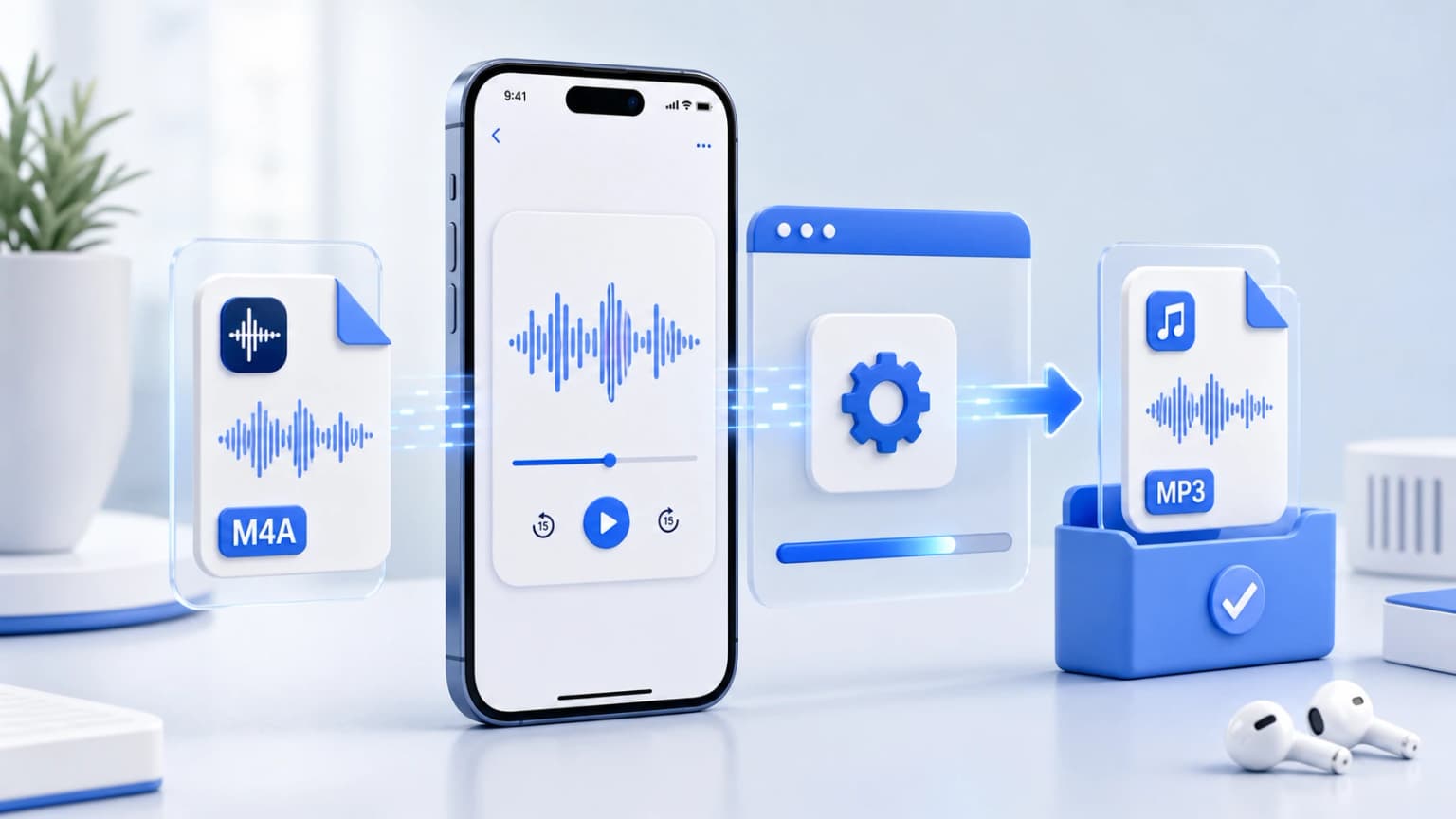
Drag & drop your M4A files here
or click to browse from desktop or phone storage
100% Secure & Private
Your files are decoded and converted locally in your browser. Nothing is ever sent to our servers.
Fast Local Processing
Uses high-performance WebAssembly (FFmpeg.wasm) to process audio at native device speed.
How to Convert on iPhone
Choose files from iOS Files
Tap our upload zone, choose "Choose File", and browse from your iCloud Drive, local iPhone folders, or vocal memos.
Pick Target Quality
Choose your desired output file format and bitrate (constant or high quality). Defaults to 256kbps.
Execute & Save locally
Wait a few moments for local compilation to finish. Save your new MP3 file directly into your iPhone Downloads folder.
Accessing Voice Memos on Mobile
To locate your recorded memos for mobile conversion, follow these simple directions:
- Launch the Voice Memos application.
- Tap on the desired audio entry, and tap the three dots (...) icon.
- Select Save to Files and click on a desired directory (e.g. iCloud Drive or On My iPhone).
- Toggle back to this website, tap the dashboard, select Safari browse controls, select the files from Files storage, and convert!
iPhone & iPad Compatibility FAQ
Other Free Audio Converters: